
App media
Screenshots & Visuals
About this app
About BBQ Timer
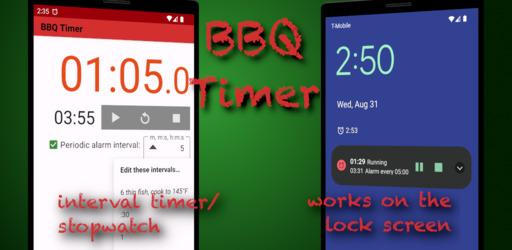
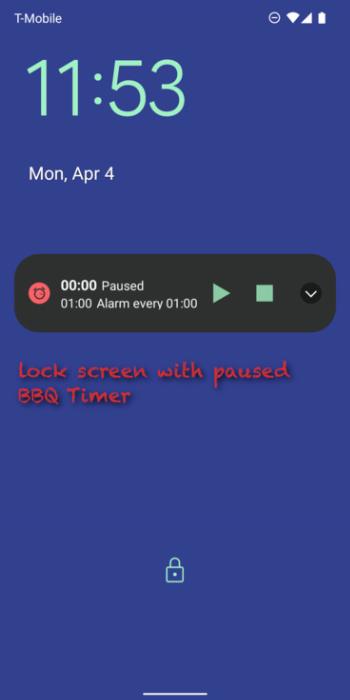
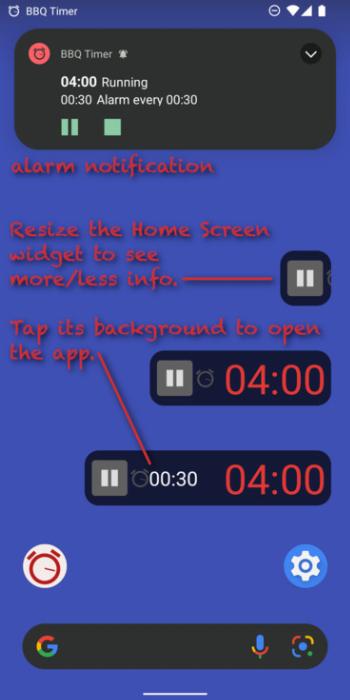
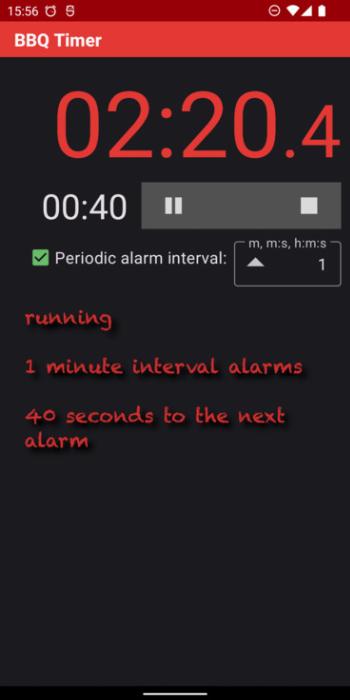
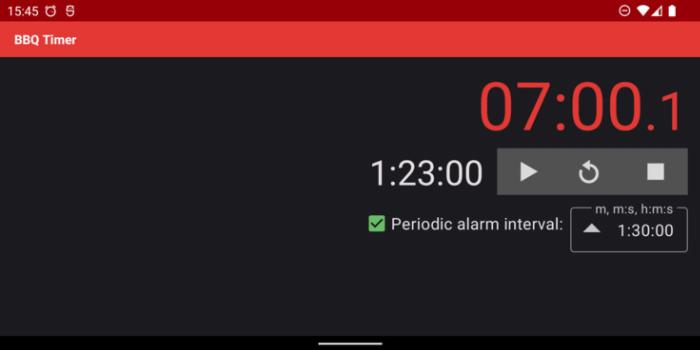
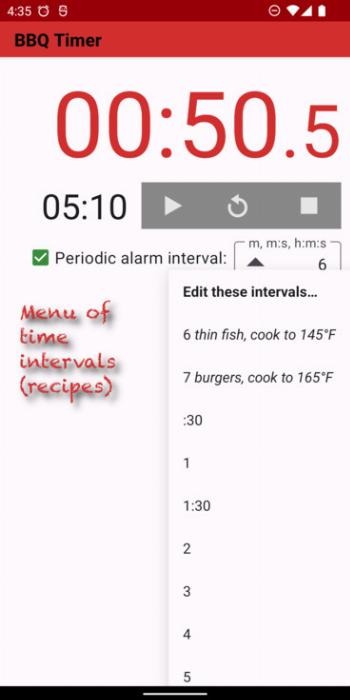
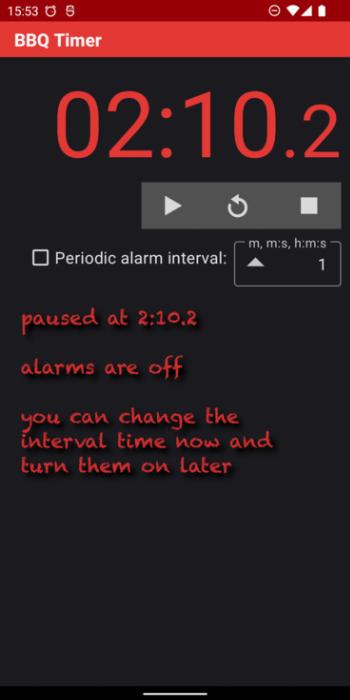
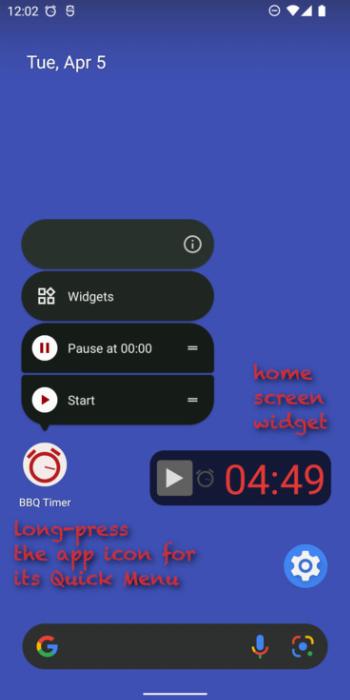
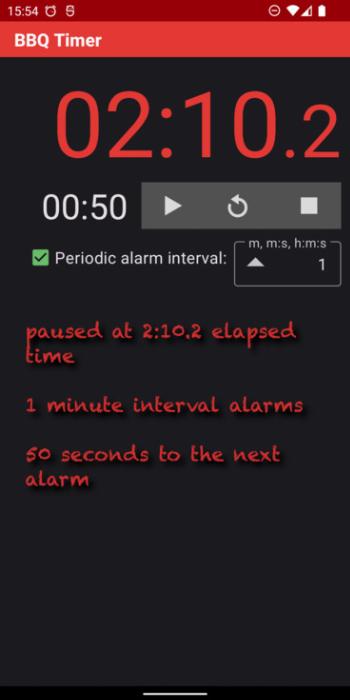
<ul><li><b>Combined interval timer/stopwatch</b> = periodic alarms + elapsed time.<ul><li>Reminds you periodically to turn the food and tracks the total cooking time.</li></ul></li><li>Quick access via <b>lock screen notification</b>, <b>pull-down notification</b>, and <b>home screen widget</b>.</li><li>Editable <b>menu of interval times</b>. Quickly access your favorite timers with notes.</li><li><b>Changeable alarms</b> while it’s running.</li><li>No ads.</li></ul><p>Type in the interval time: <i>minutes</i>, <i>minutes:seconds</i>, or <i>hours:minutes:seconds</i>.</p><p><br/><b>Example intervals</b></p><ul><li><i>10</i> = 10 minutes</li><li><i>7:30</i> = 7 minutes, 30 seconds</li><li><i>3:15:00</i> = 3 hours, 15 minutes</li></ul><p><br/><b>Short forms</b></p><ul><li><i>12:00</i> = <i>12:0</i> = <i>12:</i> = <i>12</i> = 12 minutes</li><li><i>0:09</i> = <i>:9</i> = 9 seconds</li><li><i>2:00:00</i> = <i>2:0:0</i> = <i>2::</i> = <i>120</i> = 2 hours</li></ul><p><br/><b>Tips</b></p><ul><li>Tap the checkbox to turn the periodic reminder alarms on/off.</li><li>Tap the time display to cycle between <i>stopped</i> → <i>running</i> → <i>paused</i> → <i>stopped</i>.</li><li>Add the BBQ Timer widget to the home screen.<ul><li>Tap the widget’s elapsed time to start/pause/stop.</li><li>Tap the widget’s background or its countdown time to open the app.</li><li>Resize the widget (long-press it then drag its resize handles) to see more or less info.</li><li>To remove the widget, long-press and drag it to “× Remove”.</li></ul></li><li>While BBQ Timer is <i>running</i> or <i>paused</i>, it appears <b>on the lock screen</b> and <b>in the pull-down notification</b> so you can see and control it in those places.<ul><li>To put it on the lock screen, put it in <b>Pause</b> or <b>Play</b> mode by tapping buttons in the app or the home screen widget.</li><li>Long-press the app’s home screen icon, then tap the “Pause at 00:00” shortcut (on Android 7.1+) to make it Paused and ready on the lock screen.</li></ul></li><li>Tap ▲ in the alarm interval text field for the menu of interval times.<ul><li>Tap “Edit these intervals…” in the menu to customize the menu.</li><li>Long-press ▲ to customize the menu.</li></ul></li><li>The app, home screen widget, and pull-down notification show the countdown interval time as well as the total elapsed time (requires Android 7+).</li><li>In the app, the phone’s volume keys adjust the Alarm volume.</li><li>You can change BBQ Timer’s “Alarm” sound in Settings / Notifications. Don’t pick “None” if you want to hear the interval alarms. To restore the app’s cowbell sound, uninstall and reinstall the app.</li></ul><p><br/><b>Note: These System Settings are required to hear and see BBQ Timer alarms:</b></p><ul><li>Audible “Alarm volume” level.</li><li>Lock screen / Show all or non-private notifications.</li><li>Apps / BBQ Timer “Show notifications”, <i>not</i> Silent. (Optionally override “Do Not Disturb”.)</li><li>Apps / BBQ Timer “Alarm” notification category / “Show notifications”, <i>not</i> “Silent”, “Make sound and pop on screen”, sound choice <i>not</i> “None”, Importance “High” or higher to hear and see on the lock screen and in the notification area.</li><li>Apps / Special app access / Alarms & reminders / Allowed.</li><li>Notifications / App settings / BBQ Timer / On.</li></ul>
Release archive
BBQ Timer Version History
Keep exploring